|
     |
This section lists the default locations where you will find the installed executables, configuration files, key files, the license file, and the user-specific configuration files after the installation phase.
The required file permissions (read and write rights) are also listed and marked:
MUST if security is compromised if these permissions are incorrect.
SHOULD if security is not be compromised, but incorrect permissions would give away information.
On Unix platforms, the Tectia Server files are located in the following directories and the named file permissions are required for them:
/etc/ssh2
Writable to root (must). Readable to
world. The /etc/ssh2 directory is created with
the correct permissions during installation.
/etc/ssh2/ssh-server-config.xml: the server configuration
file (see ssh-server-config(5))
Writable to root (must). Readable to world.
/etc/ssh2/ssh-server-config-default.xml: a sample file that
shows the hardcoded system defaults of the server configuration
/etc/ssh2/ssh-server-config-example.xml: a sample file with
useful examples for the server configuration
/opt/tectia/share/auxdata/ssh-server-ng: the server
configuration file DTD directory
/etc/ssh2/hostkey: the default server host private key
file
Writable to root (must). Readable to root (must).
/etc/ssh2/hostkey.pub: the default server host public key
file
Writable to root (should). Readable to world.
/etc/ssh2/hostkey.pass: the default server host key passphrase
file if the host private key has been encrypted.
Writable to root (must). Readable to root (must).
/etc/ssh2/licenses: the license file directory (see Licensing)
/etc/ssh2/trusted_hosts: the directory for host public keys
that are trusted for host-based authentication (see Host-Based User Authentication)
Writable to root (must). Readable to root (should).
/var/opt/tectia/random_seed: the seed file for the random
number generator
Writable to root (must). Readable to root (must). Set the permissions read/writable to root at each update.
/opt/tectia/sbin: the system binaries such as
ssh-server-g3 and its control utility
ssh-server-ctl
/opt/tectia/bin: the user binaries such as
ssh-keygen-g3
/opt/tectia/man: Tectia Server man pages
/opt/tectia/libexec: library binaries
/opt/tectia/lib/sshsecsh: library binaries
The user-specific configurations are stored in each user's
$HOME/.ssh2 directory.
Writable to user (must). Readable to user
(should). The permission checking can be changed with configuration setting
<auth-file-modes mask-bits="XXX"/>.
In the $HOME/.ssh2 directory:
$HOME/.ssh2/authorized_keys: the default directory for user
public keys that are authorized for login
$HOME/.ssh2/authorization: (optional) the
default authorization file for user public keys
On Windows, the default installation directory (<INSTALLDIR>) for
Tectia products is:
"C:\Program Files (x86)\SSH Communications Security\SSH Tectia" on 64-bit Windows versions
On Windows, the Tectia Server files are located in the following directories:
"<INSTALLDIR>\SSH Tectia Server": system binaries such as
ssh-server-g3.exe
"<INSTALLDIR>\SSH Tectia Server\ssh-server-ctl.exe": server
control utility command-line tool
![[Note]](images/note.gif) | Note |
|---|---|
To use the server control utility, the Windows PowerShell
or |
"<INSTALLDIR>\SSH Tectia Server\ssh-server-config.xml": server
configuration file (see ssh-server-config(5))
| Note |
|---|---|
For the server (and its configuration tool) to start, the configuration file must have correct permissions. Make sure that the owner of the file is a member of the Administrators group, only Administrators and SYSTEM may have full control of the file, Users are not allowed to modify the file, and other accounts do not have access to the file. |
"<INSTALLDIR>\SSH Tectia Server\ssh-server-config-default.xml":
sample file that shows the hardcoded system defaults of the server
configuration
"<INSTALLDIR>\SSH Tectia Server\ssh-server-config-example.xml":
sample file that shows useful examples for the server configuration
"<INSTALLDIR>\SSH Tectia Server\hostkey": default server host
private key file
Full permissions allowed only for Administrators group and the SYSTEM account.
"<INSTALLDIR>\SSH Tectia Server\hostkey.pub": default server
host public key file
Full permissions allowed only for Administrators group and the SYSTEM account. Read permissions for Users group.
<INSTALLDIR>\hostkey.pass: the default server host key
passphrase file if the host private key has been encrypted.
Full permissions allowed only for Administrators group and the SYSTEM account.
"<INSTALLDIR>\SSH Tectia Server\random_seed": the seed file for
the random number generator
"<INSTALLDIR>\SSH Tectia Server\trusted_hosts": directory for
host public keys that are trusted for host-based authentication (see Host-Based User Authentication)
"<INSTALLDIR>\SSH Tectia AUX": auxiliary binaries such as
ssh-keygen-g3.exe
"<INSTALLDIR>\SSH Tectia AUX\ssh-server-ng": server
configuration file DTD directory
"<INSTALLDIR>\SSH Tectia AUX\licenses": license file
directory (see Licensing)
| Note |
|---|---|
Users that log on to SSH server require Read & execute
permissions for the following files in the folder
|
In addition, a system library file is copied to a Windows directory:
"C:\WINDOWS\system32\sshdap.dll": library file for SSH-specific
domain authentication package (DAP)
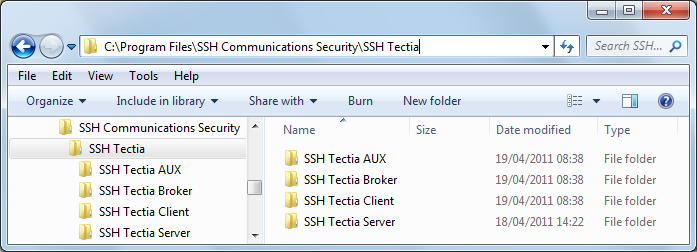
Figure 2.2 shows the Tectia directory structure when also Tectia Client has been installed on the same machine.
The user-specific configurations are stored in each user's own directory:
%USERPROFILE%\.ssh2\authorized_keys\: the default directory for
user public keys that are authorized for login
%USERPROFILE%\.ssh2\authorization:
(optional) the default authorization file for user public
keys.
On Windows, the Tectia Server installation creates the following registry keys:
HKCU\SOFTWARE\SSH Communications Security\SSH Tectia\KeyPaths
HKLM\SOFTWARE\SSH Communications Security\SSH Tectia Server
HKLM\SOFTWARE\Wow6432Node\SSH Communications Security\SSH Tectia (on
x64 architecture, only)
HKLM\SOFTWARE\Wow6432Node\SSH Communications Security\SSH Tectia Server
(on x64 architecture, only)
HKLM\SYSTEM\CurrentControlSet\Services\SSHTectiaServer
HKLM\SYSTEM\CurrentControlSet\Services\EventLog\Application\SSH Tectia SFT
              Server
HKLM\SYSTEM\CurrentControlSet\Services\EventLog\Application\SSH Tectia
              Server
HKLM\SYSTEM\CurrentControlSet\Control\Lsa
HKLM\SYSTEM\CurrentControlSet\Control\Session Manager
| |