|
     |
This section lists the supported platforms and gives the necessary prerequisites for the Tectia Server installation.
![[Note]](images/note.gif) | Note |
|---|---|
If planning to use FIPS (Federal Information Processing Standard) cryptolibrary, FIPS MODE should be enabled prior to installation to ensure Tectia Server generates default server host key upon installation in FIPS mode or the hostkey needs to be regenerated manually. Please see crypto-lib for more information. |
Check the following table for the operating systems supported as Tectia Server platforms:
Table 2.1. Supported operating systems for Tectia Client and Server
| Operating System | Client | Server |
|---|---|---|
| Apple macOS (ARM) | 15, 26 | |
| IBM AIX (POWER) | 7.2, 7.3 | 7.2, 7.3 |
| Oracle Solaris (SPARC) | 11 | 11 |
| Oracle Solaris (x86-64) | 11 | 11 |
| Red Hat Enterprise Linux (x86-64) | 8, 9, 10 | 8, 9, 10 |
| Rocky Linux (x86-64) | 8, 9, 10 | 8, 9, 10 |
| Ubuntu (x86-64) | 22.04 | 22.04 |
| Debian GNU/Linux (x86-64) | 12, 13 | 12, 13 |
| SUSE LINUX Enterprise Desktop (x86-64) | 15 | 15 |
| SUSE LINUX Enterprise Server (x86-64) | 12, 15 | 12, 15 |
| Microsoft Windows (x86-64) | 10, 11, Server 2016, Server 2019, Server 2022, Server 2025 | 10, 11, Server 2016, Server 2019, Server 2022, Server 2025 |
| Note |
|---|---|
Keep the operating system fully patched according to recommendations by the operating system vendor. |
Tectia Server does not have any special hardware requirements. Any computer capable of running a current version of the listed operating systems, and equipped with a functional TCP/IP network connection can be used.
Tectia Server requires disk space as follows:
1 GB RAM for hundreds of simultaneous tunnels
100 MB free disk space
Tectia Server requires a license to function.
The license file is named sts70.dat.
Depending on the platform for which you have purchased Tectia Server, consider the following license-related issues:
In the commercial installation packages, the license file(s) are included in the compressed
(.zip/.tar)
files together with the release notes (.txt) files and the PDF-format
documentation.
The Tectia evaluation packages do not contain license files; the evaluation versions can be used for 45 days without a license file. On Unix and Windows machines, a banner message will remind users of how many days are left until the license expires.
When upgrading the evaluation version or standard commercial version to Tectia Quantum Safe Edition only license file(s) need to be copied to the license directory and Tectia Server software restarted.
The installation packages of Tectia Server are compressed into installation
bundles. There are three bundles for each supported operating system, the Tectia Quantum Safe Edition commercial
version (-comm-pqc), the commercial version (-comm) and the upgrade and
evaluation version(-upgrd-eval). The evaluation versions can be used as upgrade
packages, if you already have a suitable license.
Select the relevant Tectia Server bundle:
For AIX platforms:
tectia-server-<version>-aix-6-7-powerpc-comm-pqc.tar
tectia-server-<version>-aix-6-7-powerpc-comm.tar
tectia-server-<version>-aix-6-7-powerpc-upgrd-eval.tar
For Linux 64-bit platforms (Red Hat Enterprise Linux, Rocky Linux and SUSE Linux):
tectia-server-<version>-linux-x86_64-comm-pqc.tar
tectia-server-<version>-linux-x86_64-comm.tar
tectia-server-<version>-linux-x86_64-upgrd-eval.tar
For Linux 64-bit platforms (Ubuntu and Debian GNU/Linux):
tectia-server-<version>-linux-ubuntu-x86_64-comm-pqc.tar
tectia-server-<version>-linux-ubuntu-x86_64-comm.tar
tectia-server-<version>-linux-ubuntu-x86_64-upgrd-eval.tar
For Solaris SPARC platform:
tectia-server-<version>-solaris-11-sparc-comm.tar
tectia-server-<version>-solaris-11-sparc-upgrd-eval.tar
For Solaris x86-64 platform:
tectia-server-<version>-solaris-11-x86_64-comm.tar
tectia-server-<version>-solaris-11-x86_64-upgrd-eval.tar
For Windows platforms:
tectia-server-<version>-windows-comm-pqc.zip
tectia-server-<version>-windows-comm.zip
tectia-server-<version>-windows-upgrd-eval.zip
<version> indicates the
product release version and the current build number (for example
7.0.1.123).
Inside the installation bundles are the actual installation packages for Tectia Server. On Unix and Linux platforms, the Tectia Server has the following installation packages:
the ssh-tectia-common package contains the common components of
Tectia Client and Server.
the ssh-tectia-server package contains the specific components
of Tectia Server.
the ssh-tectia-client package contains the specific components
of Tectia Client.
on Linux only, the ssh-tectia-guisupport RPM package contains the
specific components of Tectia Connections Configuration GUI.
On Windows, Tectia Server comes in a single MSI installation package.
| Note |
|---|---|
Before starting the upgrade, make backups of all configuration files where you have made modifications. |
When upgrading a maintenance release of Tectia Server on Windows, usually no rebooting of the computer is needed. Check the release notes to see if the current Server release can be upgraded without reboot. On Unix, upgrading does not require a reboot.
If you are running both Tectia Client and Tectia Server on the same machine, install the same release of each Tectia product, because there are dependencies between the common components.
Check if you have some Secure Shell software, for example earlier versions of Tectia products or OpenSSH server or client, running on the machine where you are planning to install the new Tectia versions.
Before installing Tectia Server on Unix platforms, stop any OpenSSH servers running on port 22, or change their listener port. You do not need to uninstall the OpenSSH software.
When upgrading on SUSE, also install the prerequisite packages:
# zypper install insserv-compat
The following table shows you which Tectia versions you need to uninstall before you can upgrade to Tectia Server 7.0. When upgrading versions marked upgrade on top, the earlier version is automatically removed during the upgrade procedure.
Table 2.2. Upgrade lines
| Tectia version | AIX | Linux | macOS | Solaris | Windows |
|---|---|---|---|---|---|
| 4.x | remove | remove | remove | remove | |
| 5.x-6.0 | upgrade on top | upgrade on top | remove | remove | |
| 6.1-6.6 | upgrade on top | upgrade on top | remove | remove | upgrade on top |
| 7.0-7.0 | upgrade on top | upgrade on top | upgrade on top | remove | upgrade on top |
The configuration file format and file locations have been changed in Tectia Server 5.0 and the Unix DTD directories in version 6.2. Because of this, the configuration files behave differently when upgrading from 4.x and from 5.x-6.1 compared to when upgrading from 6.2 and later versions.
The 6.2-7.x configuration files are used by 7.0 as such and automatically taken into use.
| Note |
|---|---|
Any explicitly configured settings, for example Ciphers, MACs and KEXs will be retained when upgrading. These might include insecure algorithms such as SHA-1 in KEX, or in host key or public-key signature algorithms. Also, for example the Post Quantum Cryptography (PQC) Hybrid Key Exchange algorithms, that require the Tectia Quantum Safe Edition license, need to be prepended to any explicit KEX configuration(s) when upgrading from Tectia version 6.5 and below. Alternatively, the explicit configuration settings, for example all KEX algorithms, can be removed from the configuration to use the 7.0 defaults or the PQC hybrid KEX can be enforced. |
The 5.x-6.1 configuration files are used by 7.0 as such and on Windows platforms automatically taken into use.
| Note |
|---|---|
Any explicitly configured settings, for example Ciphers and MACs will
be retained when upgrading. These might include insecure algorithms.
In Tectia 6.1 and earlier on Unix the default auxiliary data directory
|
The 4.x configuration files are not migrated to 7.0, but the default 7.0 configuration is used. However, the connection profiles are migrated from 4.x to 7.0 on Windows platforms.
When necessary, you can modify the configuration files by using the Tectia Connections Configuration GUI or by editing the
XML configuration files manually with an ASCII text editor or an XML editor.
Please see example files ssh-server-config-example.xml for
Tectia Server and ssh-broker-config-example.xml for Tectia Client.
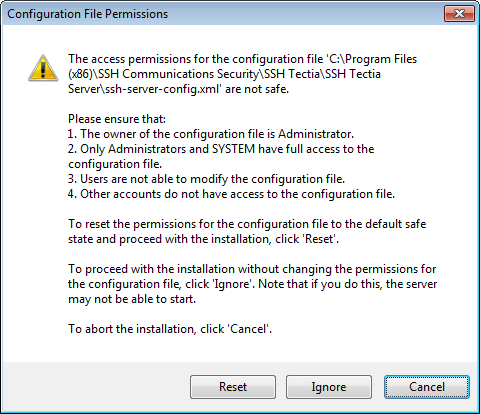
When upgrading a previously installed version of Tectia Server on Windows, the access permissions for existing configuration files will be checked during the upgrade installation.
The access permissions for the ssh-server-config.xml configuration file
should be as follows:
The owner of the file is a member of the Administrators group.
Only Administrators and SYSTEM may have full control of the file.
Users are not allowed to modify the file.
Other accounts do not have access to the file.
If the access permissions are not safe, you will see the Configuration File Permissions dialog box during the upgrade installation. Do one of the following:
Reset the permissions for the configuration file to the default safe state and continue with the installation. (Recommended)
Ignore the incorrect permissions and continue with the installation without fixing the permissions. Note that if you decide to do this, the server might not be able to start. You can fix the permissions manually later.
Cancel the installation.
| Note |
|---|---|
Your previous installation of Tectia Server has already been removed, so if you cancel the installation, your machine will be left with no version of Tectia Server installed. |
When doing a silent upgrade on Windows (see also Silent Installation)
using the /q command-line option for msiexec.exe, the
access permissions of an existing Tectia Server configuration file are checked. (The correct
configuration file access permissions are described in
Configuration File Access Permissions on Windows.) If the access permissions are incorrect, the
server will, by default, be uninstalled.
To override the default behavior, specify the desired value (1 or
2) for the SSHMSI_SSH_FILE_PERMISSIONS property of the
MSI installation package. Possible values are:
Cancel or 0 (default)
– abort the installation.
Reset or 1 (recommended)
– reset the configuration file access permissions to the default state.
Ignore or 2 – continue the installation without
modifying configuration file access permissions. Note that in this case the server and
configuration utility may not be able to start until you fix the access permissions
manually.
The following command can be used to upgrade Tectia Server silently in the default installation directory, resetting the configuration file access permissions to the default state:
msiexec /q /i ssh-tectia-server-<v>-windows-<p>.msi SSHMSI_SSH_FILE_PERMISSIONS=1
In the command, <v> is the current version of
Tectia Server (for example, 7.0.1.123), and <p> is the platform architecture
(x86_64 for 64-bit Windows versions).
All releases require a commercial license that is delivered with the installation package.
To download Tectia software from the SSH Customer Download Center:
Log in to the Customer Download Center at: https://my.ssh.com
Select Tectia Server from the SSH Downloads, and choose the relevant version. Tectia products are published in major, minor, and maintenance releases:
Major releases are indicated with full numbers, for example 7. Major releases publish new products and new major features to existing products, in addition to fixes to the previous versions.
Minor releases are indicated with the second digit in the release numbers, for example 7.0. Minor releases publish new features and fixes to the previous versions.
Maintenance releases are third digit versions, for example 7.0.1. Maintenance releases provide fixes to the previous versions, not new functionality. The maintenance releases are available for customers with Maintenance and Support Agreement.
Click the link with the correct product version and platform, and the compressed installation package will be downloaded to the default download folder on your machine.
Proceed to the installation. See the platform-specific installation instructions for Tectia Server below.
| |