|
     |
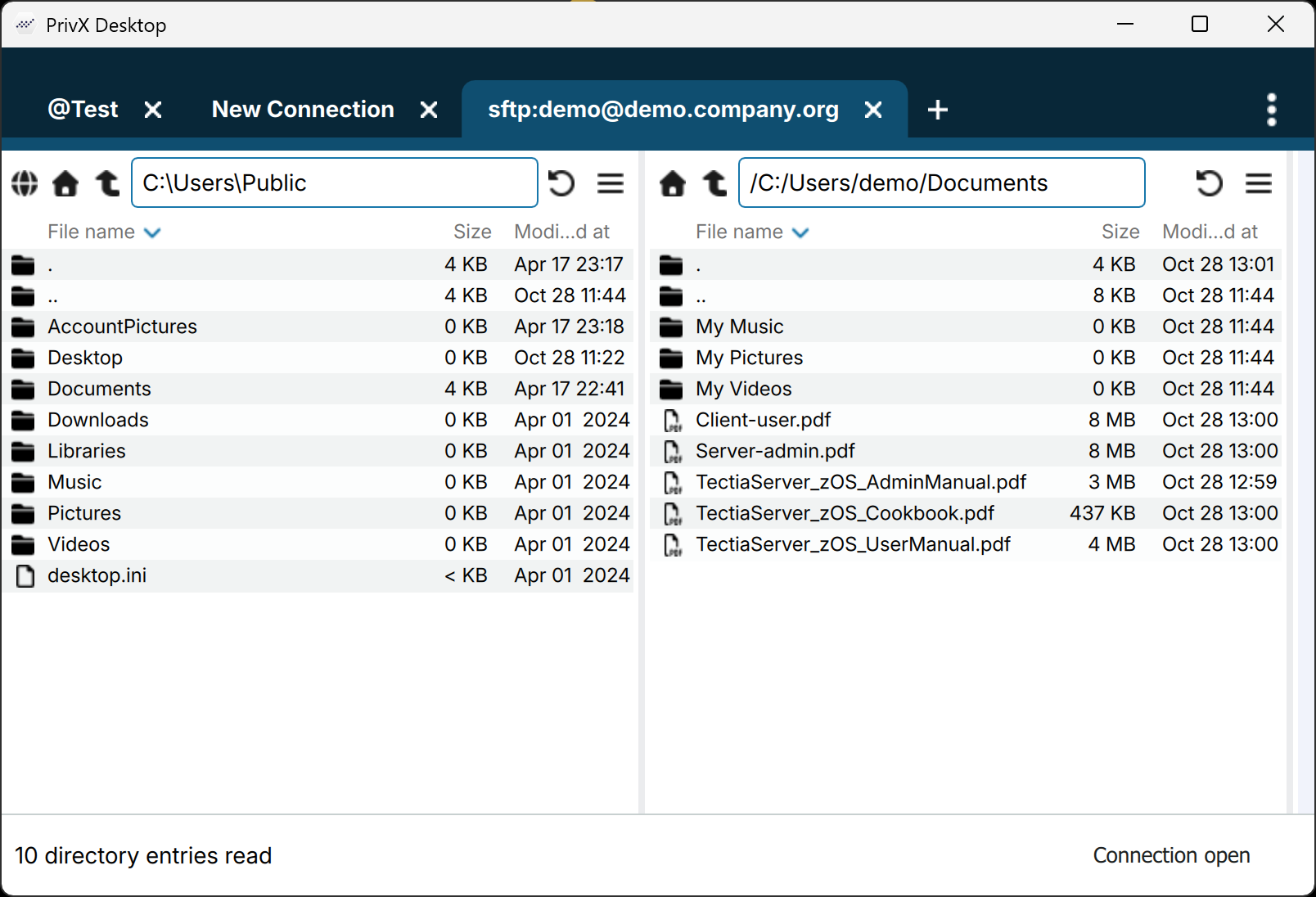
On Tectia Client, the default settings for SFTP are applicable in most cases, so you can start experimenting with file transfers immediately. The SFTP service can be used on the command line or via PrivX Desktop File Transfer GUI. The GUI includes tooltips to guide you.
Command sftpg3 is used on the command line to connect to any host that is running a Secure Shell version 2 server with the SFTP server subsystem enabled.
The basic syntax of sftpg3 is:
sftpg3username@remotehost
This logs you in to the remote host. For example, after a successful login you can fetch a file from the remote host to your local host with a command like this:
sftp> get filename
To view the commands available with sftpg3, type help at
the SFTP prompt:
sftp> help
For more information on sftpg3, see the Tectia Client User Manual.
You can transfer files via PrivX Desktop.
You can open a connection to a remote host using a connection profile defined in the Connection Broker configuration (click Profiles), or by using the Quick Connect option.
PrivX Desktop makes it easy to download files from a remote host computer into your local computer and to upload files to a remote host.
| |