|
     |
The server is authenticated with a digital signature based on an RSA, DSA, ECDSA, or Ed25519 public-key algorithm. At the beginning of the connection, the server sends its public key to the client for validation.
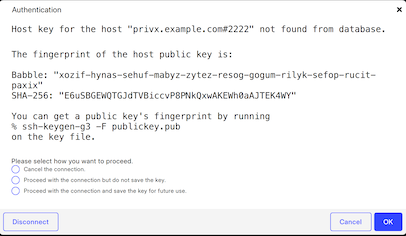
Server authentication is done during Diffie-Hellman key exchange through a single public-key operation. When public-key authentication is used to authenticate the server, the first connection is very important. During the first connection the client will display a message similar to the one in Figure 4.2.
![[Caution]](images/caution.gif) | Caution |
|---|---|
Never save a host public key without verifying its authenticity! |
To help you to verify the identity of the server host, the message displays a fingerprint of the host's public key. The fingerprint is represented using the SSH Babble format, and it consists of a series of pronounceable five-letter words in lower case and separated by dashes.
Verify the validity of the fingerprint, for example by contacting the administrator of the remote host computer (preferably by telephone) and asking the administrator to verify that the key fingerprint is correct. If the fingerprint is not verified, it is possible that the server you are connecting to is not the intended one (this is known as a man-in-the-middle attack).
After verifying the fingerprint, it is safe to continue connecting. Relevant information
about the server public key will then be stored on the client-side machine. On Tectia Client on Unix it is stored in the $HOME/.ssh2/hostkeys
directory. On Tectia Client on Windows it is stored in the
%APPDATA%\SSH\HostKeys directory.
The stored information on the host keys is used in subsequent connections to those remote hosts. Tectia Client checks which type of a host key (DSA, RSA, ECDSA or Ed25519) it possesses for a particular server, and automatically chooses the key exchange algorithm to be used in the connection between the client and server accordingly. This makes it quicker to connect to hosts for which only one type of host key has been stored.
When
auth-server-publickey
is set to some other
policy than strict (as it is by default), if logging is enabled for the
Connection Broker, Tectia Client will log information about changed and new host public keys with their
fingerprints in the syslog (on Unix) or Event Viewer (on Windows).
When the host key is received during the first connection to a remote host (or when the
host key has changed) and you choose to save the key, its file name is stored in hashed
format, keys_hhh..., where hhh is a hash of the
host port and name. The saved file contains a hash of the host's public key. A salt is
included in the hash calculations. The value of the salt is stored in the file
salt in the same directory as the host keys
($HOME/.ssh2/hostkeys on Unix,
%APPDATA%\SSH\HostKeys on Windows). The hashed
host key format is a security feature to make address harvesting on the hosts
difficult.
In the plain (traditional) format, the name of a host key file includes the host's name
and port, as in key_22_host.example.com.pub, and the file contains the
host's public key in plaintext format.
The storage format can be controlled with the filename-format attribute
of the
known-hosts
element of the
ssh-broker-config.xml configuration file. The attribute value must be
plain or hash (default).
<known-hosts path="$HOME/.ssh2/hostkeys" filename-format="plain" />
If you are adding the keys manually, the keys should be named with the
key_<port>_<host>.pub pattern, where
<port> is the port the Secure Shell server is running on
and <host> is the host name you use when connecting to the
server (for example, key_22_alpha.example.com.pub).
If both the hashed and plaintext format keys exist, the hashed format takes precedence.
Note that the host identification is different based on the host name and port the client is connecting to. The host name can occur in four different formats:
Fully qualified domain name (FQDN)
Short host name
IPv4 address
IPv6 address
The host key for each name format has to be saved separately, as they are not mutually exchangeable.
The host key is saved under the host name format used in the login. For example, if you
want to use all the host name formats when connecting to a remote host named
alpha, connect to the host first with the following commands
and save the host key under all four names:
sshg3 user@alpha
produces the key with the short host name (in plain format
key_22_alpha.pub)
sshg3 user@alpha.example.com
produces the key with FQDN (in plain format
key_22_alpha.example.com.pub)
sshg3 user@10.1.101.10
produces the key with IPv4 address (in plain format
key_22_10.1.101.10.pub)
sshg3 user@fd00:10:1:103::1:2f69
produces the key with IPv6 address (in plain format
key_22_fd000010000101030000000000012f69.pub)
When connecting to a server using its IPv6 address, the IPv6 address given to
Tectia Client is canonicalized without the colons, and the canonical format is used in the
known host key file name. For example, the plain format host key file for
::1#10022 would be
key_10022_00000000000000000000000000000001.pub. The canonical format
is also used in the process of saving and reading hashed host keys.
Also if you need to connect to the same host but different port, your client needs a
separate host key for that purpose; for example key_22_alpha.pub
and key_222_alpha.example.com.pub.
After the first connection, the locally stored information about the server public key will be used in server authentication.
If a host key is not found in the user-specific host key directory, it is next searched
on Unix from the /etc/ssh2/hostkeys directory, on
Windows
from the C:\ProgramData\SSH\HostKeys directory.
Host
key files are not automatically put in the system-wide directory but they have to be updated
manually by the system administrator (root).
The process for distributing the host keys manually is explained in the following. The instructions reflect the Unix file paths but are applicable also to Windows. Simply replace the Unix paths with the corresponding Windows paths.
To obtain and store hashed remote host keys in the system-wide storage:
Select a client-side user whose $HOME/.ssh2/hostkeys will be
the basis for the system-wide /etc/ssh2/hostkeys. The user
should have administrative privileges, as placing the keys to the system-wide location
requires them.
The same user account must also be used to maintain the system-wide
/etc/ssh2/hostkeys later on if the host key on some server
changes. The process is to maintain the user's host keys in the
$HOME/.ssh2/hostkeys directory and then replicate the changes
to the system-wide /etc/ssh2/hostkeys directory.
Make sure that the $HOME/.ssh2/hostkeys directory is empty
when obtaining the keys for the first time, or that the saved host keys are
intentional.
If you need to obtain new keys later, the same
$HOME/.ssh2/hostkeys/salt file has to be used.
Connect with Tectia Client to the remote server, verify the fingerprint, and save the key.
Repeat this step as many times as there are remote servers. Note that you do not have to complete the user authentication, only the key exchange part of the Secure Shell connection.
Once you have obtained all the host keys you wish to maintain in the system-wide location, place the keys to the system-wide location, for example by running the following commands:
# mkdir /etc/ssh2/hostkeys
# cp -p $HOME/.ssh2/hostkeys/* /etc/ssh2/hostkeys
Note that also the salt file ($HOME/.ssh2/hostkeys/salt) has
to be copied so that Tectia Client is able to identify the hashed host keys. Also if
multiple users contribute to the system-wide /etc/ssh2/hostkeys
directory, they have to share the same salt file.
After creating the system-wide location for host keys, you can maintain it by using the ssh-keygen-g3 tool.
The following copy examples show the most frequently needed commands for host key
storage maintenance. The commands use the user-specific hostkey storages
($HOME/.ssh2/hostkeys and possibly the
$HOME/.ssh/known_hosts file) as the source. If keys are to be
copied from a different source, you need to append an appropriate
--hostkeys-directory or --hostkey-file option to the
command.
To copy the key of a new host called 'alpha' from the user-specific hostkey storage to the system-wide directory, enter command:
# ssh-keygen-g3 --append=no --overwrite=no \
--copy-host-id alpha /etc/ssh2/hostkeys
In this case, because of --overwrite=no, if a key for server 'alpha'
already exists, the command will fail and the key will not be updated.
To add additional keys to a known host, enter command:
# ssh-keygen-g3 --append=yes --copy-host-id alpha /etc/ssh2/hostkeys
To update the key of a known host, enter command:
# ssh-keygen-g3 --append=no --copy-host-id alpha /etc/ssh2/hostkeys
To remove a host from the known hosts list, enter command:
# ssh-keygen-g3 --hostkeys-directory /etc/ssh2/hostkeys \
--delete-host-id alpha
For more detailed information on the ssh-keygen-g3 tool, see ssh-keygen-g3(1).
To obtain and store traditional remote host keys in the system-wide storage:
As a server-side user, copy the /etc/ssh2/hostkey.pub file
from the server as key_<port>_<hostname>.pub to the
/etc/ssh2/hostkeys/ directory on the client.
You can do this as a non-privileged user on the server but you must be a
privileged user, for example root, on the client.
Use secure means to transfer the file or verify that the fingerprint matches after
the transfer with the ssh-keygen-g3 option -F (or
--fingerprint), for example on Tectia Server on Unix:
$ ssh-keygen-g3 -F /etc/ssh2/hostkey.pub
On the client:
# ssh-keygen-g3 -F /etc/ssh2/hostkeys/key_<port>_<hostname>.pub
Note that the identification is different based on the host and port the client is
connecting to. Also connection with IP is considered a different host as well as
connection to same host but different port. You can copy the same traditional
key_<port>_<hostname>.pub to all these different
names.
Tectia Client includes a tool to resolve which hashed host key belongs to which server. As there can be several server host keys stored on the client-side host, and the file name does not show the server name, it is sometimes necessary to check if a certain server public key is stored on the client host.
In Tectia Connections Configuration GUI, the tool is available on the Host Keys page. See Managing Host Keys.
On the command line, the command syntax is:
ssh-keygen-g3 -Fhost_name[#port]
For example:
ssh-keygen-g3 -F examplehost#222
The host_name can be the fully qualified domain name, short
host name, or the IP address of the remote host. The port
definition is optional in the command. If no port is given, the default Secure Shell port 22
is assumed.
The tool shows the location, fingerprint (in the SSH babble format) and type (RSA, DSA, ECDSA or Ed25519) of the requested host's public key or keys. For example:
ssh-keygen-g3 -F examplehost
Fingerprint for key 'examplehost':
  (from location
   /home/user44/.ssh2/hostkeys/keys_bf53882dc47bb767edf161a4f636917f8358d635)
xuvin-zitil-ducid-gevil-vysok-buviz-nynun-pinat-tylev-gusez-dyxix (RSA)
If no keys are found for the given server, the ssh-keygen-g3
-F command will report where it looked for the keys, and will conclude as
follows:
/ No keys found from any key directories or known_hosts files.
You can define several file locations to be checked for host keys. For more information,
see Using the OpenSSH known_hosts File.
Tectia Client supports also the OpenSSH-style known_hosts file that
contains the public key data of known server hosts, and reads the file by default from the
default location, from the user-specific file
$HOME/.ssh/known_hosts or from the system-wide file
/etc/ssh/ssh_known_hosts. Both hashed and plain-format host keys are
supported.
In case you wish to define other files to be used for the known host keys, you can
specify the files in the Connection Broker configuration file ssh-broker-config.xml
by using the
known-hosts
element. Several file
locations can be defined to be checked for known host keys, and the Connection Broker will read them in
the order they are defined in the ssh-broker-config.xml file. Since the
configuration file settings will override the default behavior, you need to define also the
default locations of the OpenSSH-style known_hosts file, in case you
want them all to be read. For example:
<general>
  ...
  <known-hosts path="/home/username/.ssh/known_hosts" />
  <known-hosts path="/etc/ssh/ssh_known_hosts" />
  <known-hosts path="/home/.ssh2/hostkeys" />
  <known-hosts path="/u/username/.ssh2/hostkeys" />
</general>
You can disable OpenSSH known_hosts file handling by defining an
empty setting: known-hosts path="". After this, only the Tectia-related
hostkey directories will be used.
The OpenSSH known_hosts file is never automatically updated by
Tectia Client. New host keys are always stored in the Tectia
$HOME/.ssh2/hostkeys directory or in the directory configured as the
last one in ssh-broker-config.xml. See
known-hosts
for details.
| |