|
     |
Make the following preparations and check-ups before you start installing Tectia Client and Server.
Tectia products do not have any special hardware requirements. They can be installed on any computer capable of running the supported operating system versions and equipped with a functional network connection.
The Tectia Client installation requires about 400 MB of disk space. Note that Tectia Client will save each user's settings in that particular user's personal directory.
The Tectia Server installation requires 600 MB free disk space.
For general installation information, see Tectia Client User Manual and Tectia Server Administrator Manual.
Prerequisites
Before installing Tectia Server product on Windows platform, make sure the firewall is open for incoming connections to TCP port 22.
If installed on the same machine, Tectia Client and Tectia Server should always be upgraded to be the same version, because there are dependencies between the common components.
Check if you have some Secure Shell software, such as earlier versions of Tectia products or third-party Secure Shell server or client, running on the machine where you are planning to install the new Tectia versions.
In the following cases you must uninstall the existing version of Tectia Client/Server before installing version 7.0.1:
Your existing version is 6.0 or earlier.
Your existing version of Tectia Client contains the transparent tunneling component.
In any other case you can upgrade to Tectia Client/Server 7.0.1 without first uninstalling the existing version. The existing version will be automatically removed from the host during the installation procedure.
When upgrading a previously installed version of Tectia Server, the access permissions for existing configuration files will be checked during the upgrade installation.
The access permissions for the ssh-server-config.xml configuration file
should be as follows:
The owner of the file is a member of the Administrators group.
Only Administrators and SYSTEM may have full control of the file.
Users are not allowed to modify the file.
Other accounts do not have access to the file.
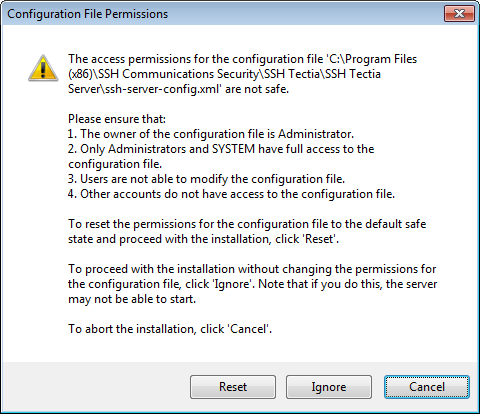
If the access permissions are not safe, you will see the Configuration File Permissions dialog box during the upgrade installation. Do one of the following:
Reset the permissions for the configuration file to the default safe state and continue with the installation. (Recommended)
Ignore the incorrect permissions and continue with the installation without fixing the permissions. Note that if you decide to do this, the server might not be able to start. You can fix the permissions manually later.
Cancel the installation.
![[Note]](images/note.gif) | Note |
|---|---|
Your previous installation of Tectia Server has already been removed, so if you cancel the installation, your machine will be left with no version of Tectia Server installed. |
Tectia Client and Server require a license to function.
The license file for Tectia Client is named stc70.dat and
the license file for Tectia Server is named sts70.dat.
Consider the following license-related issues:
The installation wizard automatically copies the license file to the correct directory when installing from an extracted package.
After installation, the license file is located in the default installation directory:
"C:\Program Files (x86)\SSH Communications Security\SSH Tectia\SSH Tectia AUX\licenses" on 64-bit Windows versions
In the commercial installation packages, the license file(s) are included in the compressed
(.zip)
files together with the release notes (.txt) files and the PDF-format
documentation.
The Tectia evaluation packages do not contain license files; the evaluation versions can be used for 45 days without a license file. A banner message will remind users of how many days are left until the license expires.
When upgrading the evaluation version or standard commercial version to Tectia Quantum Safe Edition only license file(s) need to be copied to the license directory and Tectia Client and Server software restarted.
Tectia Server does not have a user management program of its own - the user accounts are created with the standard operating system tools.
On Windows, user login requires the rights to log on locally and to access the remote computer from the network. Notice that on domain controllers, these rights are disabled by default. If Tectia Server is installed on a domain controller, permissions to log on locally and to access the computer from the network must be enabled on the domain controller for the intended group, for testing purposes for example the Domain Users group.
| |