|
     |
Automatic tunnels are pre-configured secure connections to servers and the connections are opened automatically when Tectia Client starts up (usually when the session is started). The actual tunnel is formed the first time an application connects to the listener port. If the connection to the server is not open at that time, it will be opened automatically as well.
Automatic tunneling requires settings on Tectia Client and on the application. For instructions on defining the automatic tunnels on Tectia Client, see Settings in Tectia Client.
For instructions on defining the automatic tunnels on the application to be tunneled, see Settings in the Tunneled Application.
For instructions on defining the automatic tunnels in the Connection Broker configuration file, see Settings in the Connection Broker Configuration File.
Automatic tunnels are configured with the Tectia Connections Configuration GUI.
Open the tool by going to the /opt/tectia/bin/ directory
and starting the tool:
$ cd /opt/tectia/bin/
$ ssh-tectia-configuration
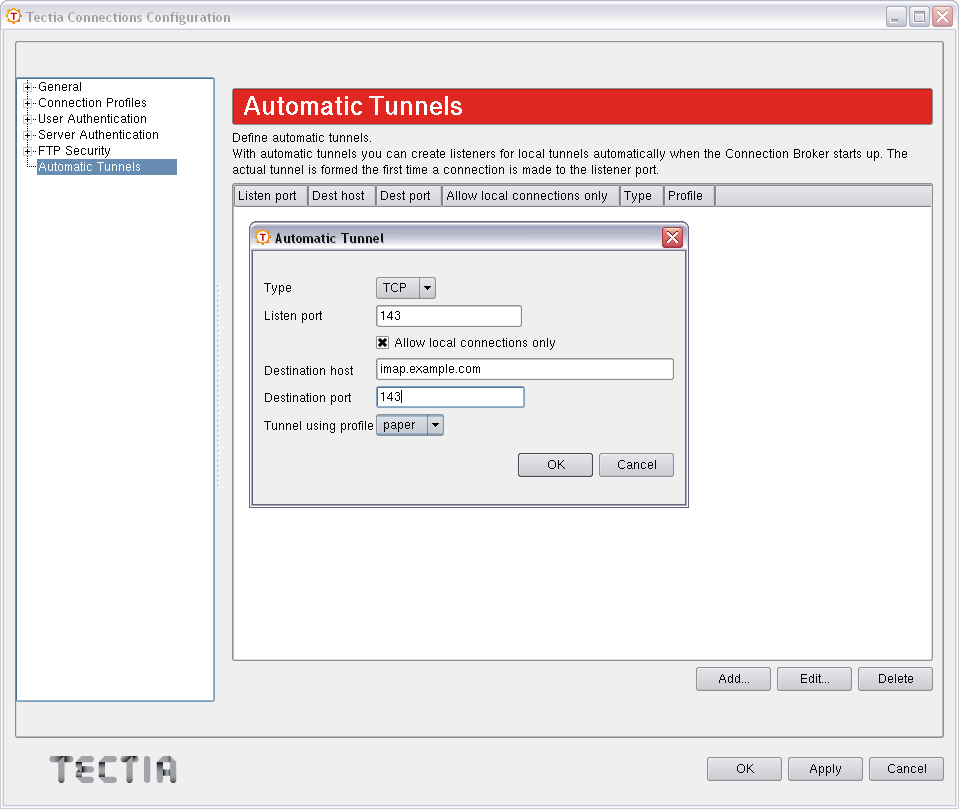
Select Automatic Tunnels in the tree menu and click Add to open the Automatic Tunnel dialog box.
Fill in the fields as follows:
Type: Select the type of the tunnel from the drop-down list. Available types are TCP and FTP.
Listen port: Define the number of a local port that Tectia Client listens to and that the applications connect to. Do not use a reserved port number.
![[Note]](images/note.gif) | Note |
|---|---|
The protocol or application for which you wish to create the tunnel may have a fixed port number (for example, 143 for IMAP and 25 for SMTP) that it needs to use to connect successfully. Other protocols or applications may require an offset (for example, 5900 for VNC) that you will have to take into account. |
Allow local connections only: Leave this option selected if you want to allow only local connections to be made. This means that other computers will not be able to use the tunnel you created. By default, only local connections are allowed. This is the right choice for most situations. You should carefully consider the security implications if you decide to also allow outside connections.
Destination host: This field defines the destination host for the tunnel.
| Note |
|---|---|
The destination host address is resolved after the Secure Shell connection has
been established, so here |
Destination port: The destination port defines the port to which the tunneled connection is made on the destination host.
Tunnel using profile: Select a connection profile through which the tunnel will be created. See Creating Connection Profiles for instructions on creating connection profiles.
To edit an automatic tunnel, select the tunnel from the list and click Edit.
To delete an automatic tunnel, select the tunnel from the list and click Delete.
The application (for example, an IMAP and SMTP e-mail, such as Pine) must be configured to connect
to the localhost port instead of the application server port.
When the tunneled application connects to the localhost port, the
connection is forwarded in encrypted format to Tectia Server, and from there unencrypted to the
application server.
You can define automatic tunnels in the Connection Broker configuration file
ssh-broker-config.xml with the static-tunnels XML
element.
The following configuration example shows a connection profile with the
static-tunnels settings for IMAP and SMTP e-mails whose connections will
be forwarded through a connection profile:
<profiles>
  <profile id="id1"
           user="user7"
           host="sshserver.example.com" />
</profiles>

<static-tunnels>
  <tunnel  type="TCP"
           listen-port="143"
           dst-host="imap.example.com"
           dst-port="143"
           allow-relay="no"
           profile="id1"/>

  <tunnel  type="TCP"
           listen-port="25"
           dst-host="smtp.example.com"
           dst-port="143"
           allow-relay="no"
           profile="id1"/>
</static-tunnels>
With the static-tunnels setting, the listeners for local tunnels are
automatically created when the Connection Broker starts up. The actual tunnel is formed the first time a
connection is made to the listener port. If the connection to the server is not open at that
time, it will be opened automatically as well.
Whenever a connection is made to the specified listener, the connection is tunneled over Secure Shell to the remote server and another connection is made from the server to a specified destination host and port. The connection from the server onwards will not be secure, it is a normal TCP connection.
The static-tunnels element can contain any number of tunnel
elements.
The tunnel element specifies the characteristics of an automatic
tunnel. It has the following attributes: type,
listen-port, listen-address (optional),
dst-host, dst-port, allow-relay, and
profile.
The type attribute defines the type or protocol of the tunnel. This can
be either tcp or ftp.
The listen-port attribute defines the local port to which Tectia Client
listens. The optional listen-address attribute can be used to define which
network interfaces on the client listens to. Its value can be an IP address belonging to an
interface on the local host. Value 0.0.0.0 listens to all interfaces. The
default is 127.0.0.1 (localhost loopback address on the client). Setting
any other value requires setting allow-relay="yes".
The dst-host and dst-port attributes define the
destination host address and port. The value of dst-host can be either an
IP address or a domain name. The default is 127.0.0.1 (localhost = server
host).
The allow-relay attribute defines whether connections to the listened
port are allowed from outside the client host. The default is no.
The profile attribute specifies the identifier of the connection
profile through which the connection is tunneled.
| |