|
     |
On Tectia Client on Windows and Linux, you can configure separate connection settings for each Secure Shell server you connect to. You can also create several profiles for the same server, for example, with different user accounts.
On Windows, you can add connection profiles via the following views:
Start PrivX Desktop GUI and open the Tectia Connections Configuration GUI by selecting Configuration from the menu icon.
(Alternatively, you can open the Tectia Connections Configuration GUI by right-clicking the PrivX Desktop tray icon
 in the Windows taskbar notification area and selecting
Configuration from the shortcut menu.)
in the Windows taskbar notification area and selecting
Configuration from the shortcut menu.)
On Linux, open the Tectia Connections Configuration GUI:
Go to the /opt/tectia/bin directory by entering:
$ cd /opt/tectia/bin/
Start the Tectia Connections Configuration GUI with the following command:
$ ssh-tectia-configuration
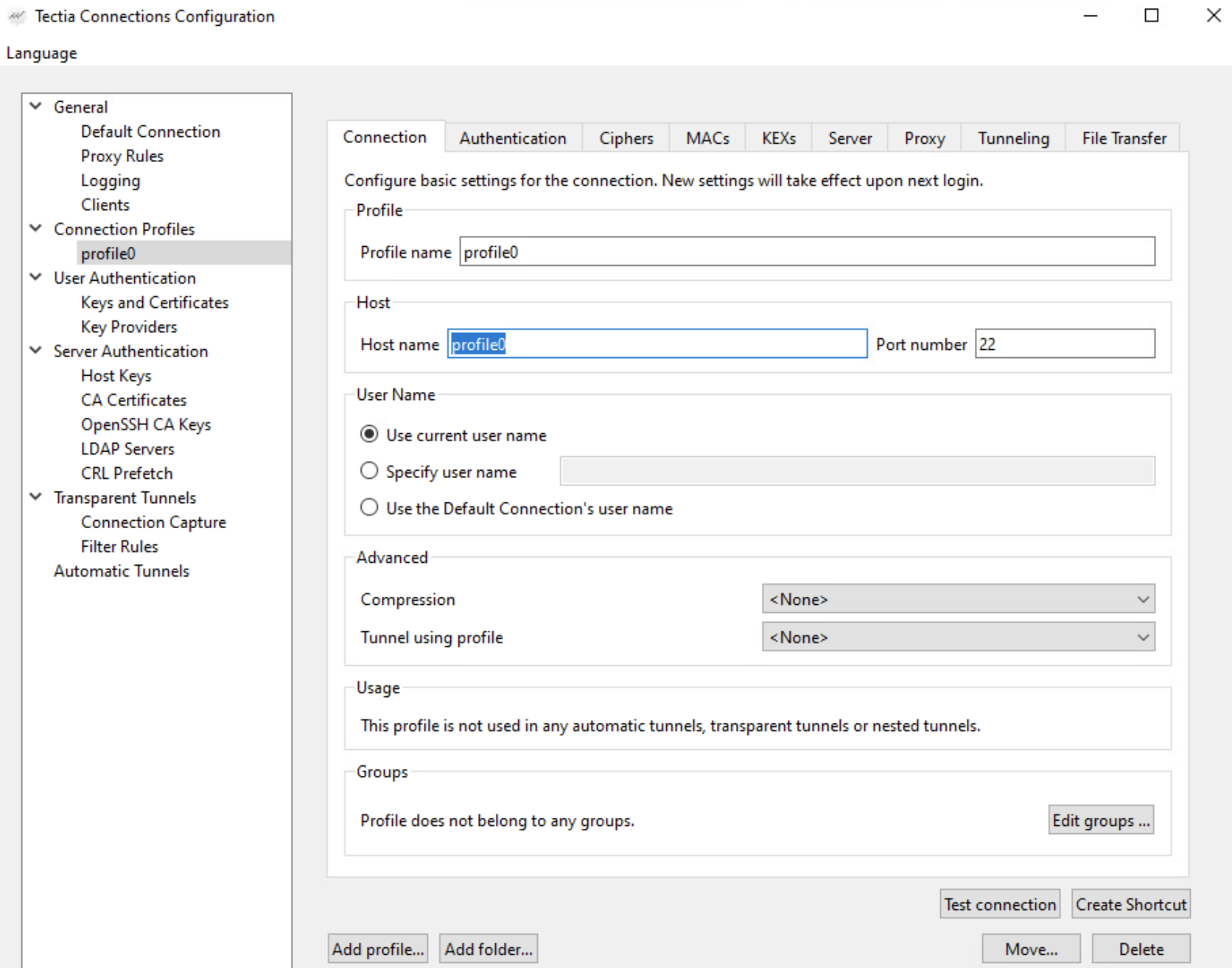
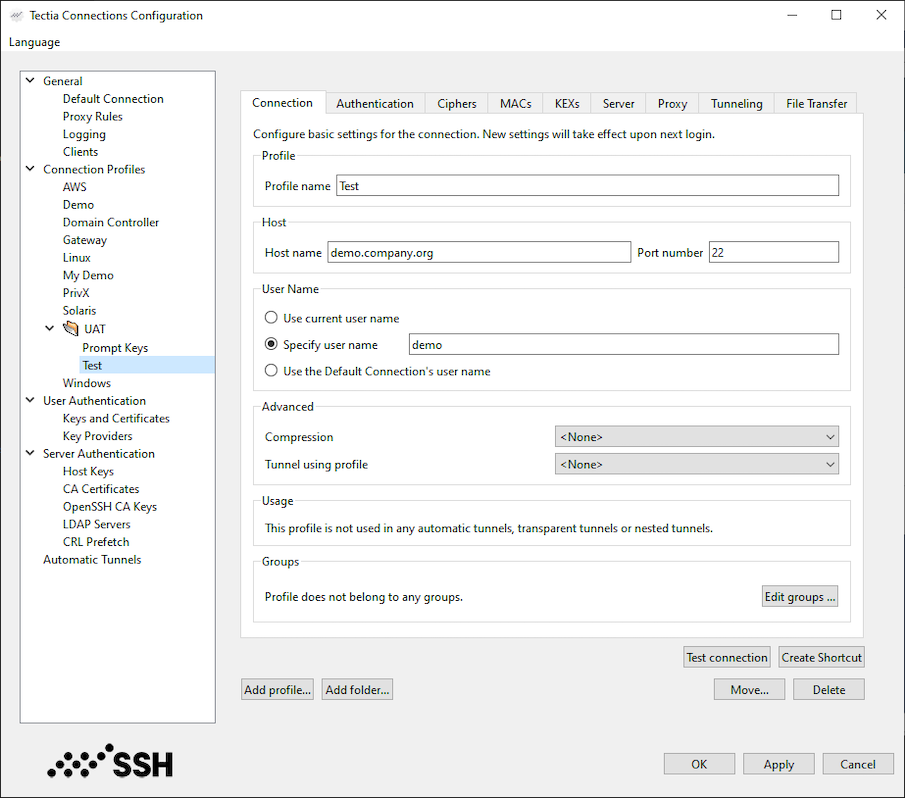
In the Tectia Connections Configuration GUI, go to the Connection Profiles page (as shown below) and click Add profile.
Newly created connection profiles will inherit the default values for authentication, ciphers, MACs, KEXs, tunneling, and advanced server settings defined under the General → Default Connection page. The values can be customized on the profile-specific tabbed pages, see Figure 3.3.
To rename a connection profile, right-click the profile name in the Connection Profiles list and click Rename. Type in the new name.
To remove a connection profile, select the profile and click Delete. You will be asked for confirmation. Click Yes to proceed with the deletion.
Under the Connection Profile page, on the Connection tab, you can define the protocol settings used in the connection. Any changed connection settings will take effect the next time you log in.
In Profile name, type a name for the profile.
In Host name, enter the name of the remote host computer to which you want to connect with the profile.
In Port number, enter the port number you want to use for the Secure Shell connection. The default port is 22.
![[Note]](images/note.gif) | Note |
|---|---|
A Secure Shell server program must be listening to the specified port on the remote host computer or the connection attempt will not succeed. If you are unsure which port the remote host computer is listening to, contact the system administrator of the remote host. |
Select Use current user name if the connection should always be
made using the currently logged in Windows
or
Unix user name. This is similar to defining
%USERNAME% (note the percent signs) as the user name.
Select Specify user name and enter the user name, if you want
to define the user name to be used when connecting to the remote host computer. If you
specify %USERNAME% (note the percent signs) as the user name, it will be
replaced with the name of the current Windows
or
Unix user account upon connecting.
Not needed now: In Compression, select the desired compression setting from the drop-down menu. Valid choices are zlib and none. Compression is disabled by default.
Not needed now: In Tunnel using profile, select the desired connection profile from the drop-down menu. Any nested tunnels will be created through the profile. For information on the tunneling features, refer to Chapter 6.
| |