|
     |
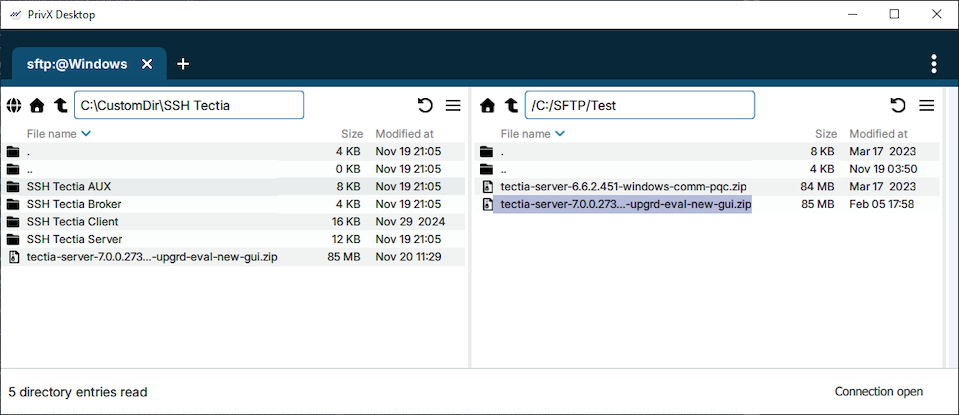
Tectia Client provides a secure file transfer GUI that makes it easy to download files from a remote host computer into your local computer and to upload files to a remote host.
In the PrivX Desktop File Transfer GUI, you can use the connection profiles defined in the Connection Broker configuration, or connect to a remote host using the Quick Connect option.
There are different ways to
download a file, or several files at the same time. Selecting multiple
files with the Shift or Control key works the
same way as in Windows Explorer.
Select file(s) or a directory with Shift + arrow keys and press
Ctrl+S to transfer the file or directory recursively
to the other side. You can also use Ctrl+A to select all including directory
entries or Ctrl+Shift+A to select all files.
Dragging and dropping is probably the easiest way to download files. Simply select the file(s) you want to download, hold down the mouse button and move the file to a location where you want it and release the button.
When you right-click a file in the Remote View, a shortcut menu appears. Select Download to perform the transfer.
The file transfer window can be used to upload files from your local
computer to the remote host computer. There are different ways to upload a
file, or several files at the same time. Selecting multiple files with the
Shift or Control key works the same way as in
Windows Explorer.
Select file(s) or a directory with Shift + arrow keys and press
Ctrl+S to transfer the file or directory recursively
to the other side. You can also use Ctrl+A to select all including directory
entries or Ctrl+Shift+A to select all files.
Dragging and dropping is probably the easiest way to upload files. Simply click on the local file(s) you want to upload (for example on the desktop or Windows Explorer), hold down the mouse button, move the file(s) into the file view in the File Transfer window, and release the button.
When you right-click a file in the Local View a shortcut menu appears. Select the Upload to perform the transfer.
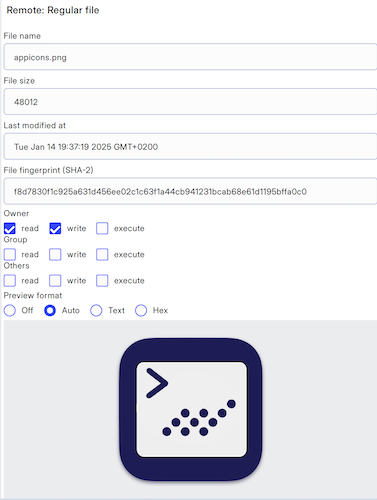
Selecting a file in the Local View or Remote View and pressing Ctrl+I toggles Information dialog which allows you to view file information including SHA-2 hash and preview the file in various formats.
The file transfer window operates very much the same way as Windows Explorer or macOS Finder. However, due to the different nature of handling files locally in your own computer with native tools and handling them over a secured remote connection in the host computer (as per Tectia Client file transfer), there are some differences in operation.
![[Caution]](images/caution.gif) | Caution |
|---|---|
| Delete in secure file transfer is immediate and permanent operation. |
Deleting a folder will delete the files and subfolders recursively immediately instead of requiring user confirmation or moving the files to Bin as the native operating system tools typically do.
During copy and paste operations, the file names are not changed when the files are pasted. Therefore it is not possible to paste files several times into one location, creating multiple copies of the pasted files as in Windows Explorer.
![[Note]](images/note.gif) | Note |
|---|---|
The maximum size of transferred files is limited only by the file system. (On many systems the maximum file size is 2 gigabytes.) However, downloading large files with drag and drop is limited as user-specific configuration directory is used temporarily by the PrivX Desktop File Transfer GUI. Use keyboard shortcut or shortcut menu in File Transfer View to download large files. |
| |