|
     |
When Tectia Client (or Connection Broker) is running on Windows or Linux, and if so enabled in the
operating system startup settings, the tray icon  is displayed in the notification area of the Windows taskbar, typically
next to the time display at the bottom of the desktop.
is displayed in the notification area of the Windows taskbar, typically
next to the time display at the bottom of the desktop.
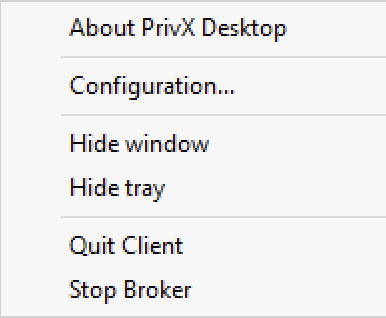
Click the PrivX Desktop icon to open the GUI client.
Right-click the PrivX Desktop icon to open the shortcut menu.
The menu has the following product-specific options:
About shows the installed version and license information.
Configuration opens the Tectia Connections Configuration GUI.
Quit Client closes the PrivX Desktop GUI.
Stop Broker stops the Connection Broker and closes all open connections.
| |